

YOUR RENEWED DELL VOSTRO LAPTOP
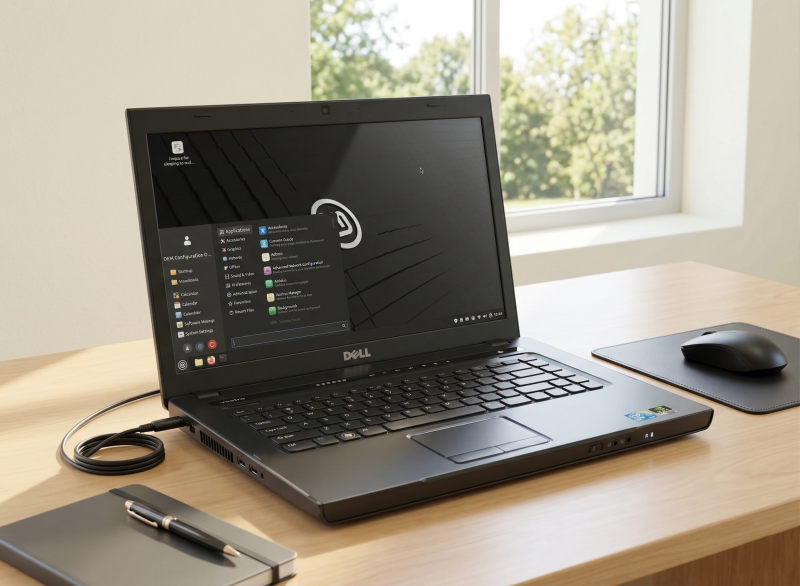
🌿 Getting Started with Linux Mint Cinnamon
A simple, friendly guide from CTECH
Welcome to your refurbished laptop! This guide will help you get comfortable with Linux Mint Cinnamon — a fast, secure, eco‑friendly operating system that’s easy to use, even if you’re coming from Windows.
🚀
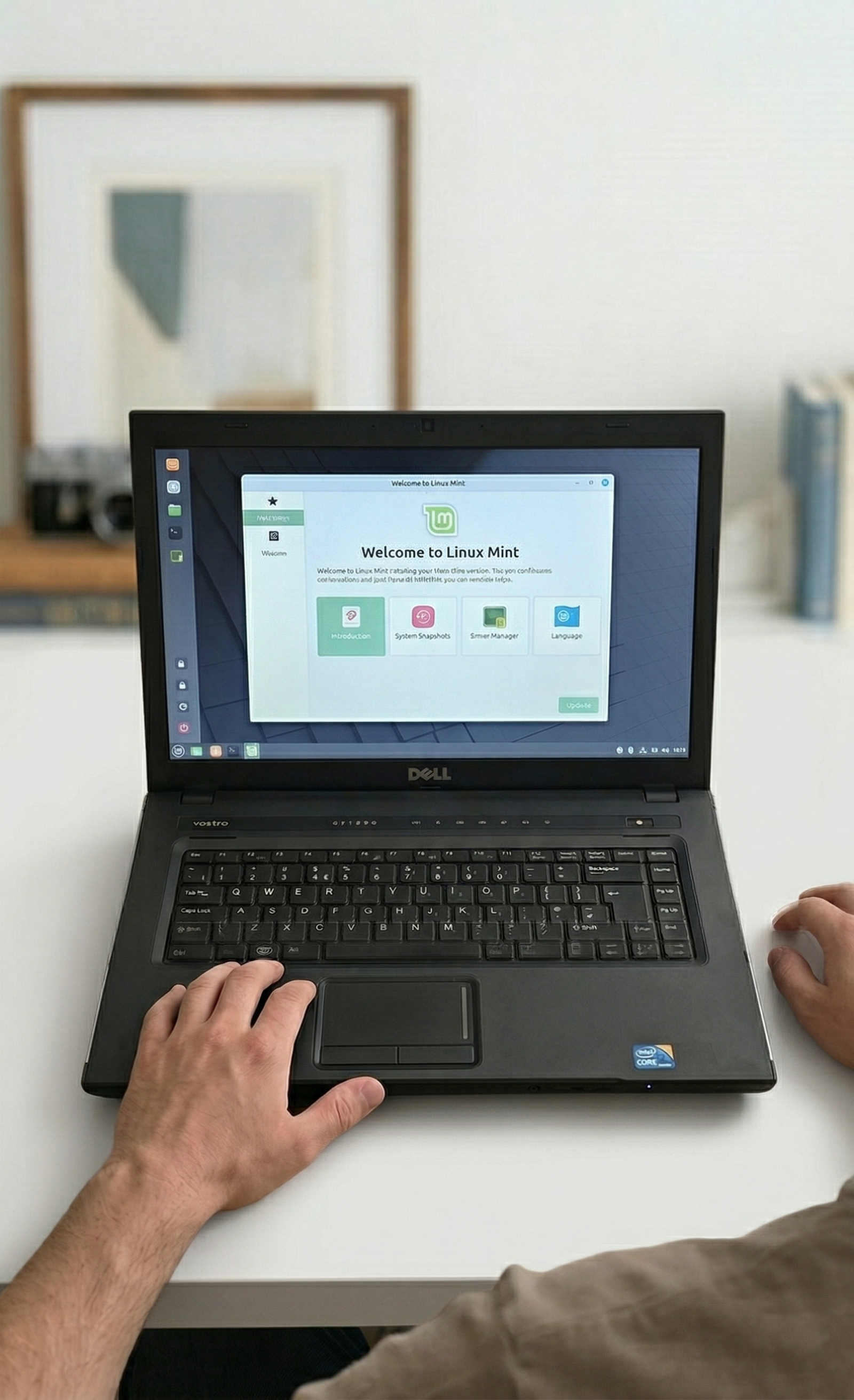
First Steps After Turning On Your Laptop
🔑 Log In
- Username: user
- Password: mint
You’ll be prompted to change the password — choose something memorable.
📶 Connect to Wi‑Fi
- Click the Wi‑Fi icon (bottom‑right)
- Choose your network
- Enter your password
🟩 Explore the Menu
Click the Menu button (bottom‑left) to access:
- Apps
- Settings
- System tools
- Software Manager
It’s laid out similarly to Windows, so it’ll feel familiar.

📦
2. Installing Apps - Simple & Free
Linux Mint includes Software Manager, your built‑in app store.
🛍️ To install apps:
1. Open Menu
2. Search for Software Manager
3. Browse or search
4. Click Install
⭐ Popular apps available:
• 🌐 Chrome / Firefox
• 🎵 Spotify
• 🎮 Steam (gaming)
• 🎨 GIMP (photo editing)
• 🎥 VLC Media Player
• 📧 Thunderbird (email)
• 📞 Zoom / Teams
No subscriptions. No bloatware. No hidden extras.
📝
3. Office Work & Documents
Your laptop includes LibreOffice, which is compatible with:
• Microsoft Word
• Excel
• PowerPoint
You can open, edit, and save in Microsoft formats all without paying a monthly or yearly subscription!
🖨️
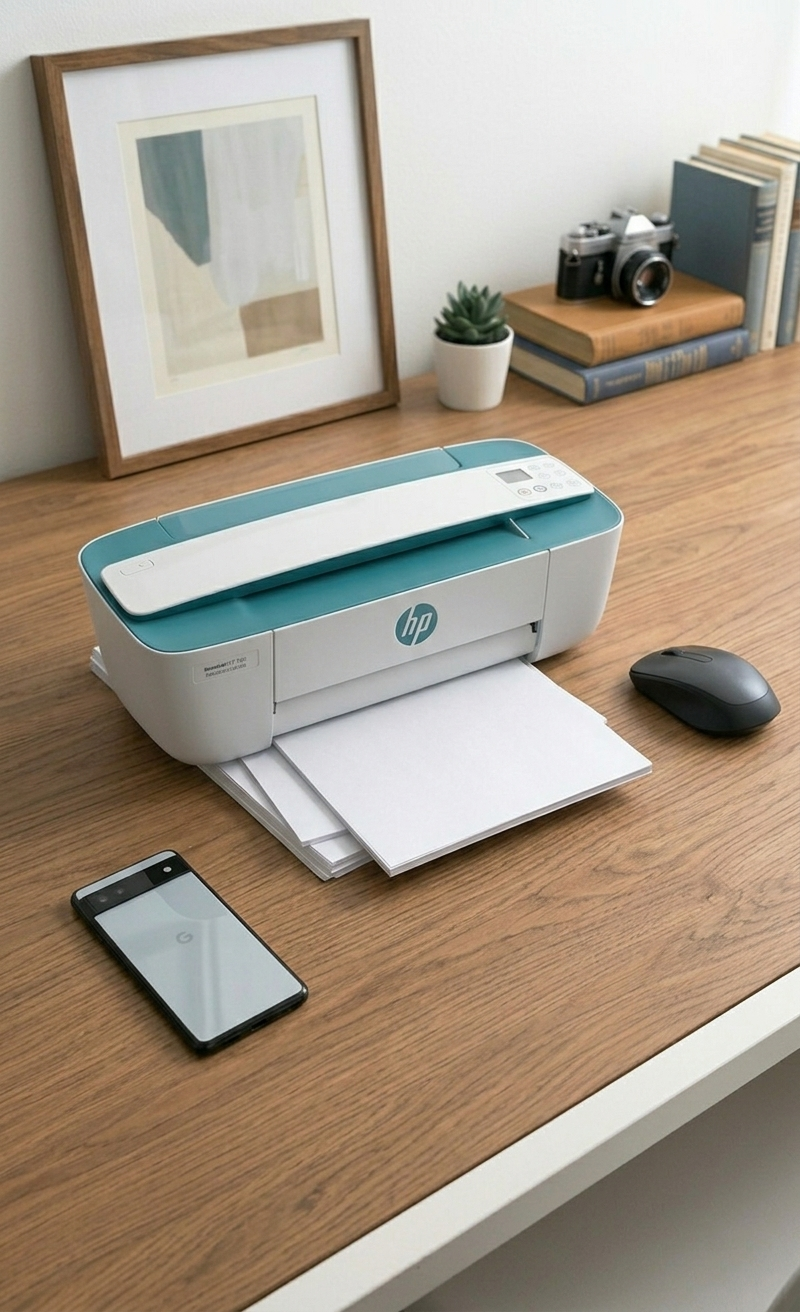
4. Connecting Printers & Devices
Linux Mint supports most printers and accessories automatically.
To add a printer:
- Open Menu → Printers
- Click Add
- Select your printer
- Confirm with Add
USB printers usually install themselves instantly.